The Freight Configurator is a flexible tool that allows you to adjust freight rates based on criteria that you specify. The adjustment is made to the Bill As rate. The Freight Configurator is an add-on module and must be purchased separately.
Administrative Setup
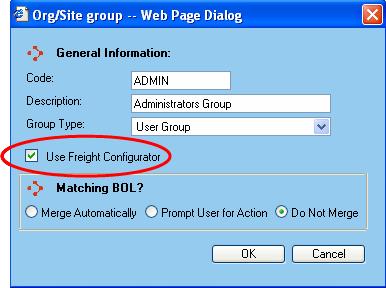
When processing a shipment, in order for the freight configurator adjustment to be made, the Freight Configurator must be activated for the Org/Site group. To set this up, go to Configuration | Org/Site Groups. When adding or editing an org/site group, there is a checkbox called Use Freight Configurator. Select this box to activate the freight configurator for the specified org/site group.
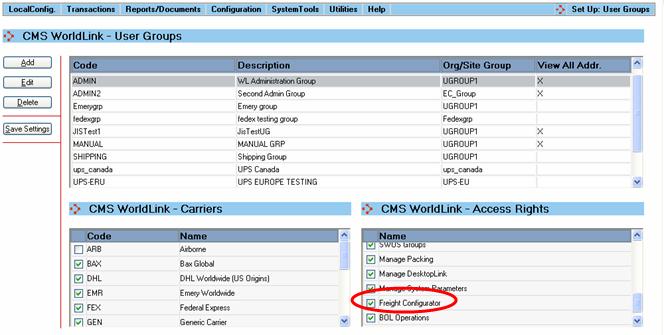
There is a new access right at the user group level. To activate this, go to Configuration | Users | User Groups and select the Freight Configurator access right for the appropriate user group. When activated, users in the group will have access to the Freight Configurator setup.
Defining Freight Configurator Rules
To setup the Freight Configurator, select Configuration | Freight Configurator. Select the Org/Site group for which you want to setup the freight configurator from the dropdown list.
NOTE: Org/site groups that do not have the freight configurator activated will appear in the list with (Off) next to the org/site group name.
Select the Add button to define a new rule. The following screen will appear:
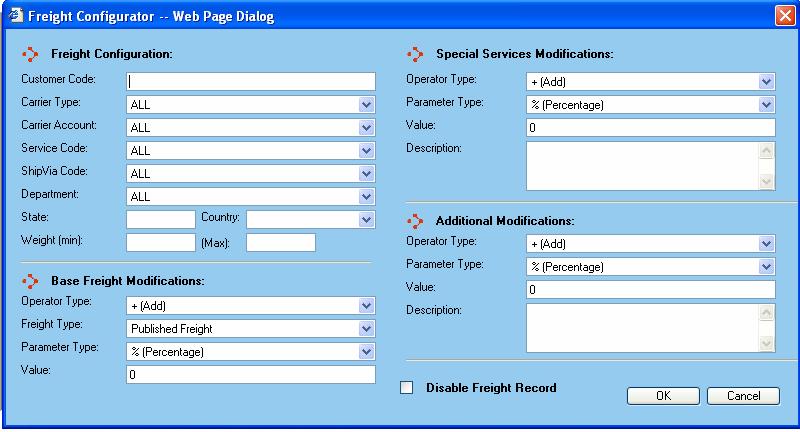
The fields are as follows:
Customer Code – Enter the customer code criteria for applying this rule. If the rule applies to all customers, type ALL in the field.
Carrier Type – Select the carrier type criteria for applying this rule. If the rule applies to all carrier types, select ALL.
Carrier Account – Select the carrier account criteria for applying this rule. Accounts will be displayed based on the carrier type selected. If the rule applies to all carrier accounts, select ALL.
Service Code – Select the service code criteria for applying this rule. Service codes will be displayed based on the carrier account selected. If the rule applies to all service codes, select ALL.
ShipVia Code – Select the ShipVia code criteria for applying this rule. ShipVia codes will be displayed based on the service code selected. If the rule applies to all ShipVias, select ALL.
Department – Select the department criteria for applying this rule. If the rule applies to all departments, select ALL.
State - Enter the state criteria for applying this rule. If the rule applies to all states, leave this field blank.
Country – Select the country of origin criteria for applying this rule. If the rule applies to all countries of origin, leave this field blank.
Min Weight – Enter the minimum weight criteria for applying this rule.
Max Weight – Enter the maximum weight criteria for applying this rule.
Base Freight Modifications
Operator Type – Select add or subtract. Add will add the value specified below to the base freight rate. Subtract will subtract it.
Freight Type – Select whether to apply the adjustment to the published or the discounted rate.
Parameter Type – Select percentage or absolute value, indicating how to interpret the amount in the value field.
Value – Enter the value of the base freight adjustment. The parameter type will indicate whether this is an absolute value or percentage.
Special Services Modifications
Operator Type – Select add or subtract. Add will add the value specified below to the special services charge. Subtract will subtract it.
Parameter Type – Select percentage or absolute value, indicating how to interpret the amount in the value field.
Value – Enter the value of the special services adjustment. The parameter type will indicate whether this is an absolute value or percentage.
Description – Enter a description of the purpose of this freight adjustment.
Additional Modifications
Operator Type – Select add or subtract. Add will add the value specified below to the freight charge. Subtract will subtract it.
Parameter Type – Select percentage or absolute value, indicating how to interpret the amount in the value field.
Value – Enter the value of the freight adjustment. The parameter type will indicate whether this is an absolute value or percentage.
Description – Enter a description of the purpose of this freight adjustment.
Disable Freight Record – Select this checkbox to disable the record. It will remain in the database, but will not be applied to any rates.
Cloning Freight Configurator Rules
A freight configurator entry can be cloned. To do this, select the entry to be copied and select the Clone button.
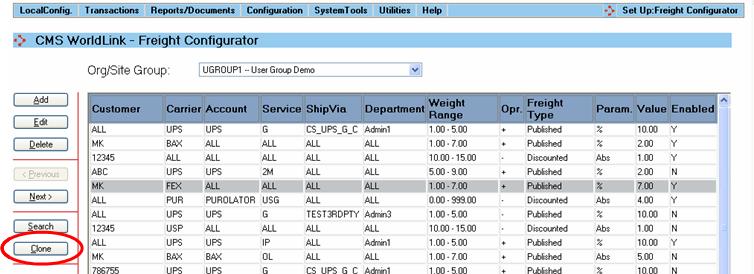
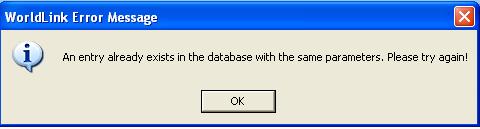
The freight configurator dialog will appear with the data of the selected configurator rule. Make the necessary changes and select OK to save. You must change something so that the record is not the same as the original. If you do not change anything and try to save the record, the following message will appear:
Applying Rules When Shipping
If a shipment matches the criteria specified and the rule is enabled, then the bill as rate is adjusted as specified. If the adjustments result in a negative rate, WorldLink will ignore the changes and the freight will not be modified. This will be indicated in the CustomFreightDetails field of the packages table.
NOTE: If the shipment information matches multiple freight configurator entries, the MOST RESTRICTIVE rule will be used.
The order of the criteria, in decreasing order of importance, is as follows:
• Customer Code
• Carrier Type
• Carrier Account
• Service
• ShipVia
• Department
• State
• Country
• Weight Range
Example 1: Multiple Matching Rules
Consider the following 2 setups:
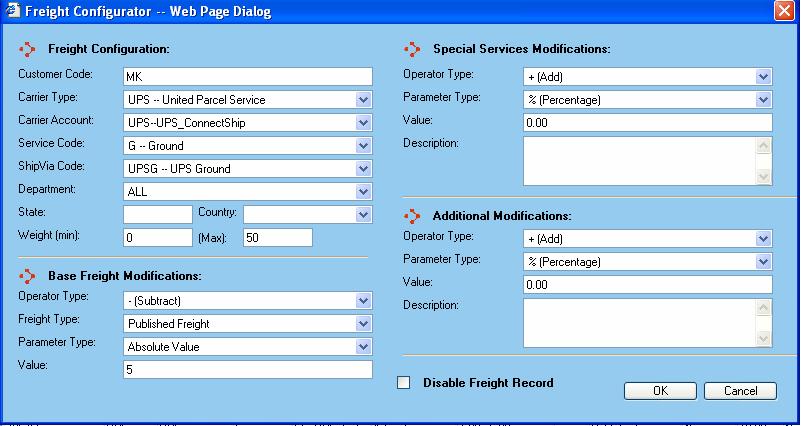
Rule 1
Rule 2
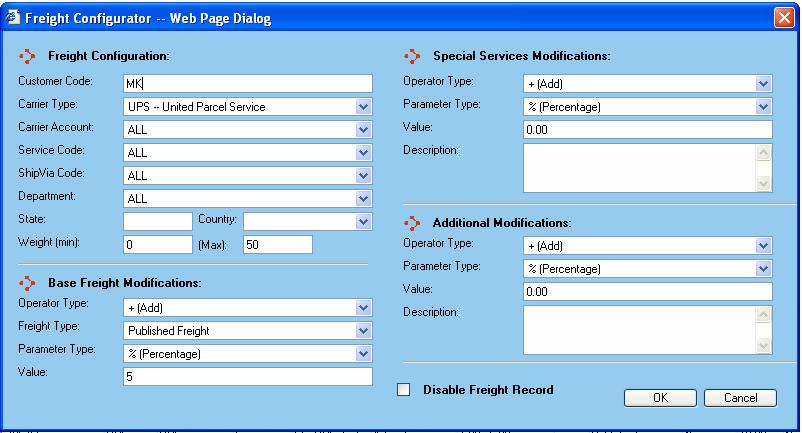
For a 10 pound shipment to customer code MK via UPS ground, both of the rules would apply. However, rule 1 is more restrictive because not only does the customer code and carrier type match, but the carrier account, service code and shipvia also match. Therefore, the published freight of this shipment would be adjusted by subtracting $5.
Example 2:
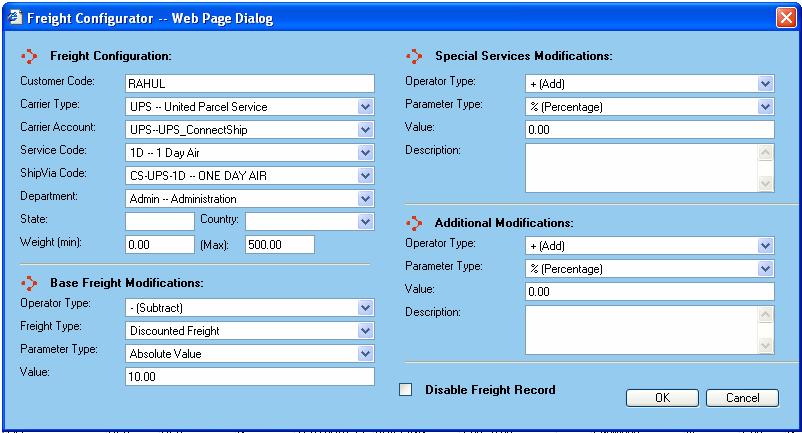
For the example in the screen shot below, if a shipment is made to customer code RAHUL via CS-UPS-1D for department Admin and the weight is no more than 500, then the discounted rate will be adjusted by subtracting 10 dollars. If the parameter type were set to percent, then the discounted rate would be decreased by 10%.
View Shipments
The total adjusted freight and the logic used can be seen on the View Shipments screen:
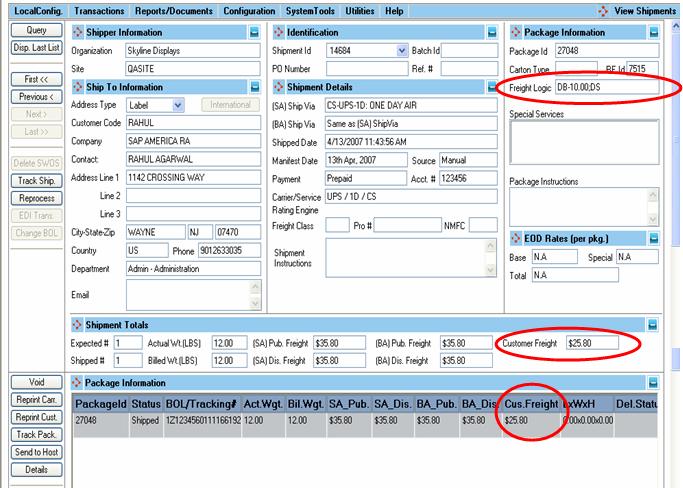
The customer freight by package is displayed in the Cus. Freight field in the Package Information section. The shipment level customer freight is displayed in the Shipment Totals section. The calculation used to adjust the freight is displayed in the Freight Logic field in the Package Information section.
Database
The modified freight values are stored in the database (Shipments and Packages tables) in the following Customer Freight fields:
CustomerBaseFreight – modified base rate
CustomerSpecialServices – modified special services rate
CustomerTotalFreight – modified total rate
The adjustment that is applied is stored by package in the database. It can be found in the CustomFreightDetails field of the Packages table.
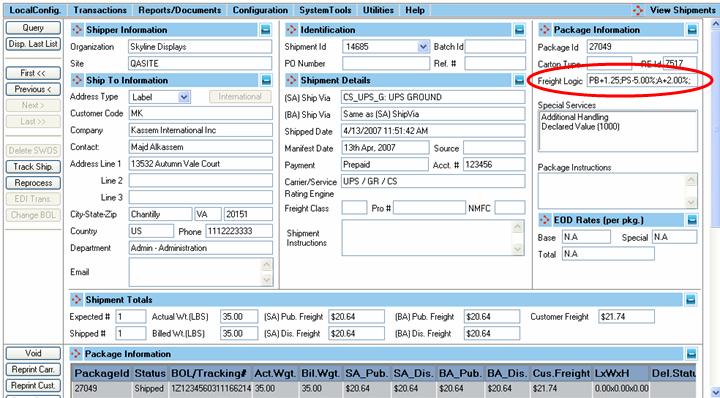
This example indicates that the published based rate (PB) was increased by $1.25, the published special services (PS) was decreased by 5% and there was an additional (A) increase of 2% to the total rate.
Sample Calculation
Original Rates:
|
Published base |
10.00 |
|
Published special |
5.00 |
|
Published total |
16.00 |
Freight Config Record:
|
Published base |
+10% |
|
Published special |
+10% |
|
Published total |
+10% |
After freight configurator modification:
|
Type |
Base Amount |
10% |
Total |
|
Published base |
10 |
1 |
11 |
|
Special services |
5 |
.5 |
5.5 |
|
Additional |
(11 + 5.50) = 16.50 |
1.65 |
1.65 |
In the database:
|
Field |
Calculation |
Value |
|
Customer Base Freight |
10 + 1 |
11 |
|
Customer Special Services* |
5.50 + 1.65 |
7.15 |
|
Customer Total Freight |
11 + 7.15 |
18.15 |
*The Customer Special Services field stores the total special services rate plus the additional modifications.