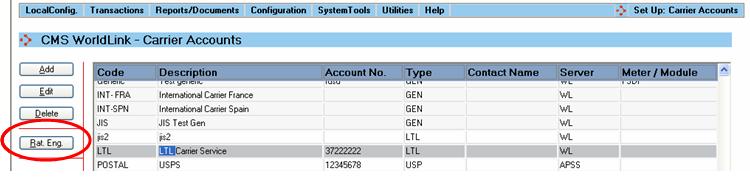
To set up a generic carrier, select Configuration | Carrier | Carrier Accounts from the menu. Select the Add button. The Carrier Account Dialog screen will open. The Type should be set to GEN – Generic Carrier for generic carriers. For LTL carriers the type should be LTL – LTL Carriers. In both cases, the Server Type should be WL.
Once the carrier has been created, select the Rat. Eng. button to set the parameters for the carrier account.
The first section of the rating engine setup is General Configuration.
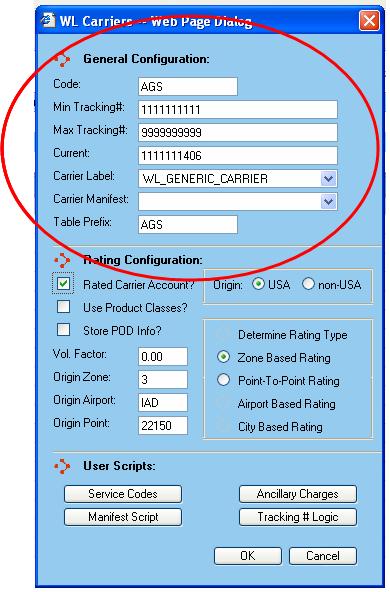
The following data is in this section:
Code – carrier code (read-only field taken from the carrier information)
Min and Max Tracking Number – range to use for tracking numbers. NOTE: These fields are not currently being used for LTL carriers.
Current – most recent tracking number used
Carrier Label – carrier label to use
Carrier Manifest – manifest report to use
Table Prefix - prefix for the carrier database tables
The Rating Configuration setup is used to specify what type of rating to use for this carrier.
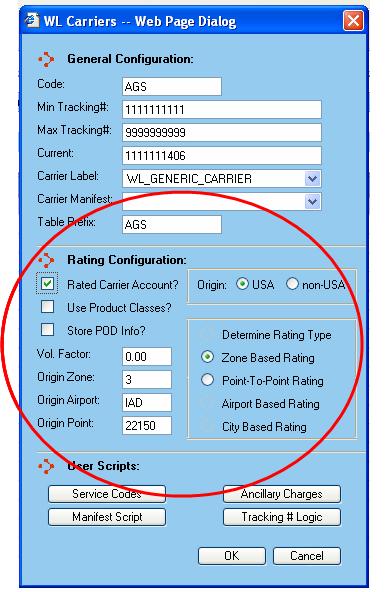
The following data is entered here:
Rated Carrier Account? – Select if the carrier account is rated and should include rates when used for shipping.
Use Product Classes? – Select if the rates are based on product class. This option is only available if Rated Carrier Account has been selected.
Store POD Info? - Select if Proof of Delivery information will be stored for the carrier account. In order to store this data, scripts will have to be developed.
Origin – Select whether the shipping origin is in the USA or outside the USA (non-USA).
Vol. Factor – Used for the calculation of dimensional (volumetric) weight: (L * W * H) / (Vol. Factor)
Rating Types (NOTE: All table names should be prefixed with the table prefix)
Determine Rating Type - This selection is only allowed for non–USA origins. This enables the user to customize the type of rating used based on the origin and destination countries. Users would need to enter data in the CountryRef table denoting the rating type to be used for the respective origin and destination countries.
Zone Based Rating – This selection is only allowed for USA origins. Rates are calculated based on the origin and destination zone. The destination zone is calculated based on the destination city, state and zip from the zones table. The Rates table consists of the respective rates based on the origin and destination zone.
Point–To-Point Rating - Rates are calculated based on the origin and destination zip codes. The rates are maintained in the Ratesxxxxx table, where xxxxx is the origin zip code.
Airport Based Rating – This selection is only allowed for non-USA origins and rates will be determined based on Airport Code. The destination Airport Code is determined based on the destination city, country and zip combination from the Airports table.
City Based Rating - This option is only available for non-USA Origins. The rates are maintained in the CityRates table based on the OriginZip, DestinationZip and State.
Origin Details
Origin Zone – Enter the Origin Zone Code, which is used as the origin zone for zone based rating.
Origin Airport – Enter the Origin Airport Code, which is used as the origin airport for airport based rating.
Origin Point/City – Enables users to enter Origin Point (US) or Origin City (non-US) value and is used as the origin city in city based and point to point rating.
The next section is the User Scripts section:
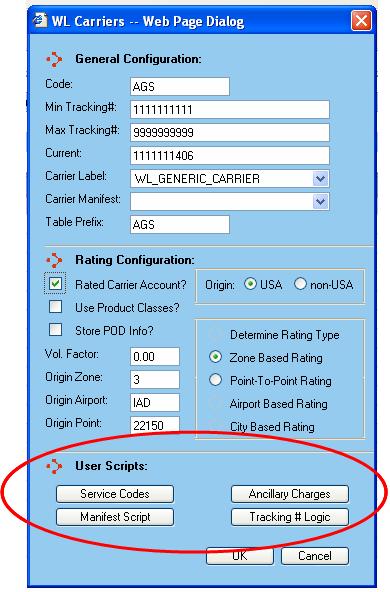
Service Codes – Select to define codes and descriptions for different service types.
Manifest Script – Allows you to create a script to be run at the time of manifest posting.
Ancillary Charges – This option is only available for rated carriers and allows you to create a script to add fuel or accessorial charges.
Tracking # Logic – Allows you to create a script to define the logic for tracking number generation.