FedEx Transborder Distribution service is a service offered from FedEx for shipments to the US from Canada or Mexico. It allows for simplified customs clearance by consolidating shipments to the border and then distributing within the US using FedEx domestic shipping services.
Transborder Setup
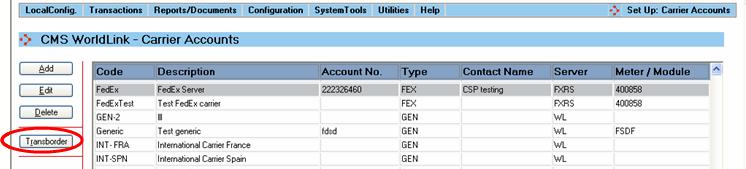
On the carrier accounts screen, select the Transborder button (this button is only available for FedEx carriers).
Selecting the Transborder button opens the following screen:
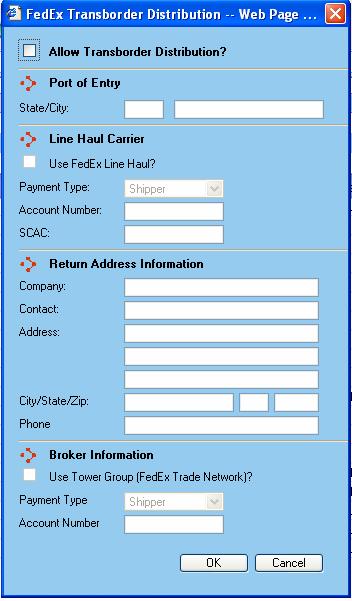
Allow Transborder Distribution? - Check this box to allow Transborder shipments for this carrier.
Port of Entry State/City - Enter the city and state of the port of entry.
Line Haul Carrier – Select checkbox if using FedEx as the line haul carrier. Enter account number if FedEx line haul carrier.
Return Address Information - Enter the return address to appear on the Transborder labels. NOTE: The return address must be a US address. The return address can be modified using script. If the return address in process shipments is a US address, then WorldLink will not overwrite it from the TD configuration.
Broker Information – Select checkbox if using FedEx as the broker and if so, select the payment type and enter the account number.
NOTE: The Transborder configuration cannot be changed if there are any open manifests with Transborder shipments.
Transborder Process
Shipper scans package/shipment in WorldLink
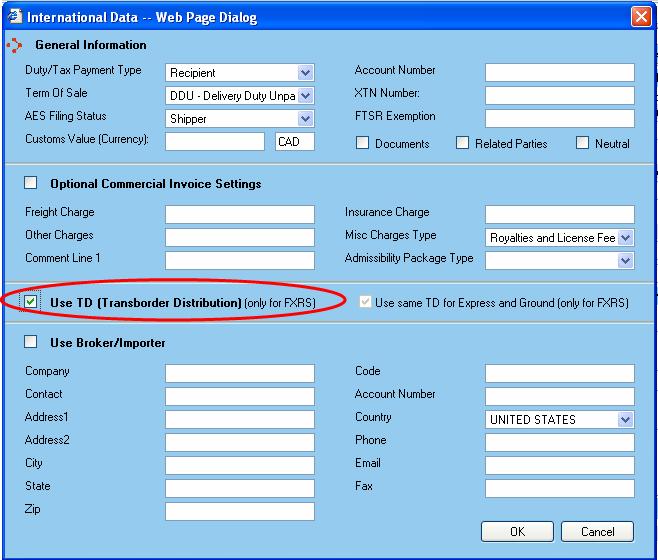
WorldLink will check if it is a TD package/shipment or not. If yes, then continue to the next step; otherwise continue with the normal shipping process. This can be indicated manually by selecting the International Button on the Process Shipments screen and selecting the Use TD checkbox:
WorldLink checks if an open TD shipment exists for that day and meter number.
NOTE: There can be only one open TD shipment at any point of time for a particular day and meter number
If yes, then WorldLink will add the scanned package to the existing TD shipment. If no, then WorldLink will first create an open TD shipment and will add the scanned package
WorldLink will generate the shipping label similar to the US domestic labels (with additional wording for TD and no package count). One such label per package is required.
WorldLink checks if box is last box of the shipment.
If yes, WorldLink will generate an individual Commercial Invoice. Only one Commercial Invoice will be printed for the entire shipment. It will list the tracking numbers of each package.
Following holds true:
All the previous steps will be repeated for all the scanned packages/shipments throughout the shipping process.
Users can view, at any time, all the packages/shipments in an open TD shipment. This can be done by going to the View Shipments screen or from Manifest Explorer.
Users can delete any package/shipment from an open TD shipment
When FedEx is ready to pick up the skids/pallets:
User will confirm the TD shipment. This is not necessarily the ‘close out’ transaction at the end of the day. After this stage, no modifications can be made for the TD shipment but non-TD shipments can continue to be made against the manifest and new TD shipments can be created.
Go to Manifest Explorer and select the Transborder button.
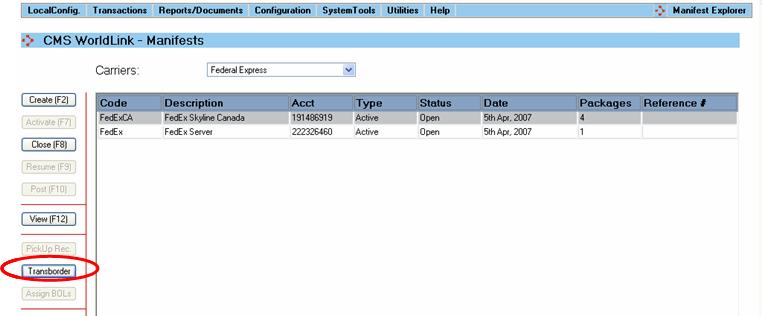
This will display the TD Information window:
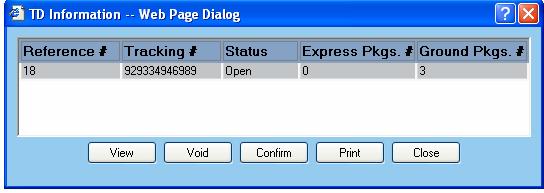
Select View to View the TD shipments.
Select Void to void the entire TD shipment.
Select Confirm to confirm the TD shipment.
Select Print to print the Consolidated Commercial Invoice and Multi-Buyer cover sheet. The TD Shipment must be confirmed in order to print.
Select Close to close the TD Information window.
WorldLink will generate the CCI (Consolidated Commercial Invoice)
One CCI will be printed for each buyer (even if this includes multiple addresses and services). The buyer, or sold to, is specified in the secondary address field during process shipments. If no secondary address is specified, the label address will also be used as the sold to.
When there are multiple consignees, CCI will indicate “various consignees” and will not explicitly list the addresses
WorldLink will generate a “TD multi-buyer cover sheet” with the totals
Viewing Posted Transborder Shipments
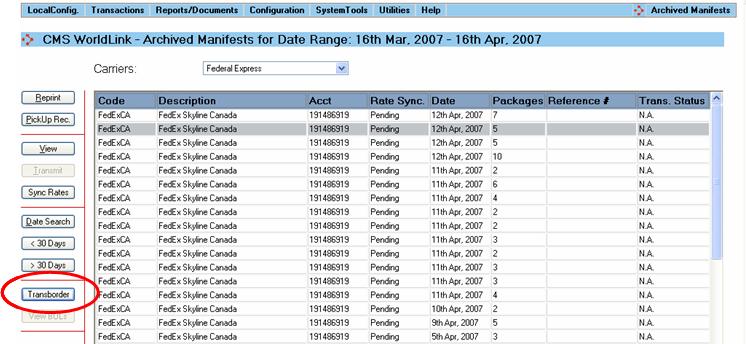
Once a Transborder shipment has been posted, it can be viewed and the corresponding documents can be printed from the Archived Manifests screen. Select the appropriate manifest and select the Transborder button:
This will open the TD Information screen, similar to the one in Manifest Explorer:
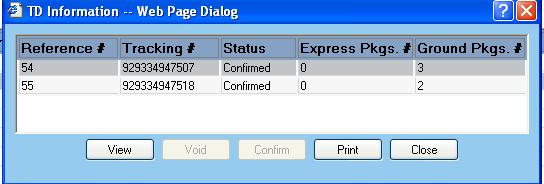
Select from the available options:
Select View to View the TD shipments.
Select Print to print the Consolidated Commercial Invoice and Multi-Buyer cover sheet.
Select Close to close the TD Information window.
Additional Considerations
Cannot post a manifest with TD shipments until the TD shipment has been confirmed. This is a manual process. If you try to post a manifest with unconfirmed TD shipments, the following message will appear:
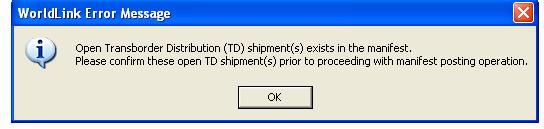
Select the Transborder button to confirm the shipments and then post the manifest.
Once a TD shipment has been confirmed, no changes can be made to it.
TD configuration cannot be changed if there are any open TD shipments.
TD manifests have to be confirmed on the same day or earlier.
Cannot rate shop TD shipments.