This topic discusses information about a shipment to be viewed. The user can view a shipment, return, a package in a shipment, or view the details of a package. It also provides options for shipment maintenance and package tracking status. Only shipments and returns that have been processed successfully in the Process Shipments or Process Returns screens will be available for viewing. Shipments that are in manifests that have been posted can also be accessed through the Archived Manifests menu option.
The user is presented with the Search Criteria dialog box when first entering this screen.
To search for shipments for a particular Organization, Site, Carrier or ShipVia, select the corresponding Load button to retrieve all of the options. Disabled sites appear in red and can be selected as search criteria.
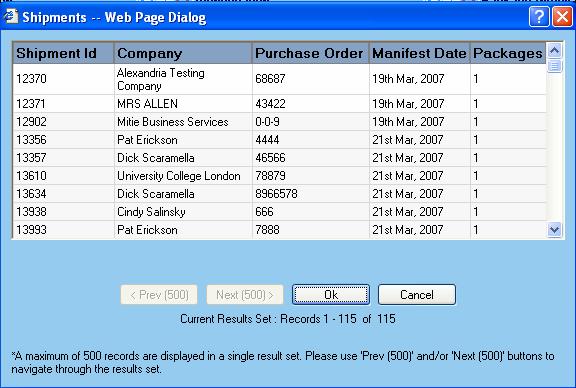
Select your search criteria and then select Ok. A list of all shipments matching the specified criteria will be displayed:
A maximum of 500 records idisplayed in a single result set. Use the Prev (500) and the Next (500) buttons to navigate through the results set.
Double-click on the shipment in question or highlight the shipment and click on the OK button. To cancel the listing without choosing a shipment, click the Cancel button.
If the user cancels out of the above window, the view Shipments window is displayed with no data populated in the fields. If a shipment is selected, the view Shipments window displayed with all of the information related to the selected shipment.
The data is displayed in read-only format. There are no changes you can make to the shipment. To make modifications, the shipment must be voided and re-entered through the Process Shipment screen.
The Query button brings up the Search Criteria dialog so that a new search can be conducted.
Select Disp. Last List to re-display the results of your most recent query.
The First, Previous, Next, and Last buttons provide the means for perusing the shipments returned from the query. Depending upon where in the returned list you are, certain buttons may be grayed out.
Delete SWOS
The Track Ship button does a status check against all the packages in the shipment of the highlighted package. NOTE: Only major carriers, such as FedEx, UPS and DHL, that provide online package tracking will have a status.
The Reprocess button will rerate the entire shipment. This button is only available if the Re-rate Carrier option is selected for the ShipVia.
The EDI Trans. button will activate the EDI Re-Transmission After Shipment event. For more information, see EDI Transmission After Shipment.
The Change BOL button changes the Bill of Lading that the shipment is assigned to. For more information, see View LTL Shipments.
The International button is displayed if the shipment is an international shipment. Click on this button to see what international settings were used for that particular shipment.
EOD Rates (per pkg)
Shows the base, special and total rate based on End of Day Consolidation (currently only available for FedEx and ConnectShip rating engines).
Package Detail
The Package Detail section will display the return information when you are a viewing a return.
Package Level Functions
The Void button allows for the deletion of a batch (if configured), a shipment, or a package. The value of which is based on the currently viewed shipment.
The Reprint Carr. button reprints the carrier label for the package.
The Reprint Cust. button reprints the custom label for the package.
The Reprint ETD button reprints the electronic trade documents for the package.
The Track Pack. button does a status check on the highlighted package. NOTE: Only major carriers, such as FedEx, UPS and DHL, that provide online package tracking will have a status.
The Send to Host button re-sends data about the shipment to the host. Being able to re-transmit to host can be useful if problems prevented the uploading of shipment information to the host system when the shipment was processed.
The Details button brings up a listing of the itemization (such as package details) of the shipment. This function is similar to hitting the F9 key on the Process Shipment screen.
The Transmit EDI gives you the option to re-send or download the EDI file.
The Freight Details button shows the details of the freight rate, including special services and other surcharges.
It may be necessary to use the horizontal scroll bar to view all the information about the package. It will be necessary to scroll to the right to view the result of a track procedure.
The following freight information is found in the Shipment Totals section of the screen:
Expected # - Expected number of packages.
Shipped # - Actual number of packages shipped.
Total Shipment Weight - the total weight of the shipment, both billed and actual.
Total Shipment Freight (Shipped As) - the total freight cost of the shipment, published and discounted, based on the ShipVia.
Total Shipment Freight (Billed As) - the total freight cost of the shipment, published and discounted, based on the Bill As rate.
Customer Freight - the total freight cost as adjusted by the freight configurator.