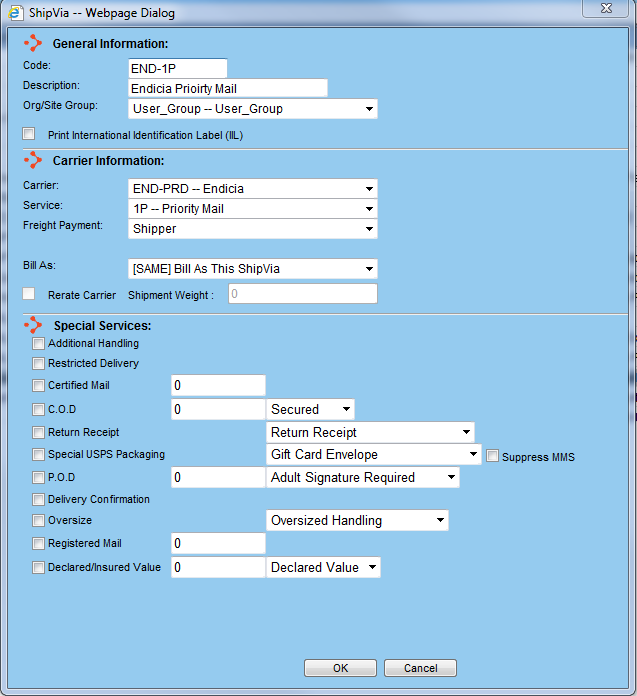
The ShipVia Dialog window is presented whenever you want to add or edit from the ShipVia screen.
General Information
Code - This is the code by which you want the ShipVia to be referenced in the WorldLink system. Certain functions of WorldLink will present the user with this code as reference to the ShipVia.
Description - The text entered here is used as a description for the carrier service.
Org/Site Group - Select the Org/Site Group that will be able to use the ShipVia.
Print International Identification Label - Check the checkbox to print international identification labels. This is useful for multi-package international shipments where carrier labels are not printed until the last package is processed. The IIL labels can be applied to the packages so there is a reference point for applying the carrier labels when they print.
Carrier Information
Carrier - Select the carrier for the ShipVia from the drop-down list. The list provided is pulled from the Carrier Accounts listing.
Service - Select the service type for the ShipVia from the drop-down list. The list provided is based on the type of carrier selected, e.g. FEDEX, UPS, Generic, LTL, etc. Not all carrier types share the same services.
Payment - Select the payment method to be associated with the ShipVia. Options are Prepaid, Collect, 3rd Party, and Consignee.
Bill As - Default Bill As to use with this ShipVia.
Rerate Carrier - Select this checkbox to re-rate shipments for this carrier. The re-rate is done after the last box of the shipment is shipped. This checkbox is only active if Rerate Shipment is selected for the associated carrier.
Shipment Weight - If Re-rate Carrier is selected, the re-rate will only be done if the shipment weight is greater than or equal to this amount.
The special services section displays information dependent upon the carrier selected. Some services are shared by various carriers while some services are not. While the services listed below may not exactly match the image above, one or more of the carriers offer the service. To set the default value for the service for the process shipment screen, click in the box to the left of the name of the special service.
C.O.D. (Cash on Delivery) - The available fields are for the COD total, the type of COD being used (available options are Unsecured, Secured, and Cash). Click in the appropriate box to add fee(s) or add freight to the COD total.
Declared/Insured Value - The available fields are for the total value and to indicate whether the value is declared or insured.
Hazardous Materials - Select the type of hazardous materials used for the ShipVia from the drop-down list. Available options are Dangerous Goods Accessible, Dangerous Goods Inaccessible, Hazardous Materials, Lab Pack Medical Shipment Service, and Lab Pack Medical Shipment Hazardous.
Call Tag - Also known as UPS Return Service Plus. Used to notify UPS to pick up a shipment at a certain address. This information is sent to UPS when the manifest is posted.
Saturday Delivery - To indicate Saturday delivery.
Saturday Pickup - To indicate Saturday pickup.
P.O.D. - The available fields are for the Proof of Delivery and to indicate the type of POD used:
Adult Signature Required
Delivery Confirmation
Acknowledge on Delivery
Signature Required
Proof of Delivery
Direct Signature Required
Indirect Signature Required
Delivery Confirmation - Select during the shipping process in order to trace packages.
Residential - Select the appropriate residential attributes for the ShipVia from the drop-down list. Available choices are Residential Delivery and Pickup, Residential Delivery, and Residential Pickup.
Hold At Location - Hold at carrier distribution center nearest to delivery target.
Inside Pickup - Pick up package from inside a building.
Dry Ice - Enter the amount of dry ice.
Inside Delivery - Deliver package inside a building.
Priority Alert - Priority alert service.
Priority Alert Plus®
Ship Alert - Ship alert service.
Certified Mail - Select this for certified mail shipments. Use this when a mailing receipt is required at the time of mailing and you use the Post Office to retain a record of delivery.
Registered Mail - Select this for registered mail shipments. Use this when tight security is necessary from the Post Office from the point of mailing to the point of delivery. Shipments can be insured up to $25,000 against loss or damage.
Restricted Delivery - Select this for restricted delivery shipments. Use this when the shipment needs to go to a specific recipient.
Return Receipt - Select this for return receipt shipments. Use this when a hard copy proof of delivery is required.
Do Not STack Pallets
International Controlled Export
Food
Freezable Protection
Guaranteed Plus
Limited Access Delivery (LAD)
Limited Access Pickup (LAP)
Lift Gate Required
Single Shipment
Top Load Only
Third Party Consignee
APO/FPO Box
Game Board Box
Priority Mail Regional Rate Box C
Available functions are:
OK - Click on this button to accept the changes made.
Cancel - Click on this button to cancel out of the ShipVia dialog window and discard any changes made.