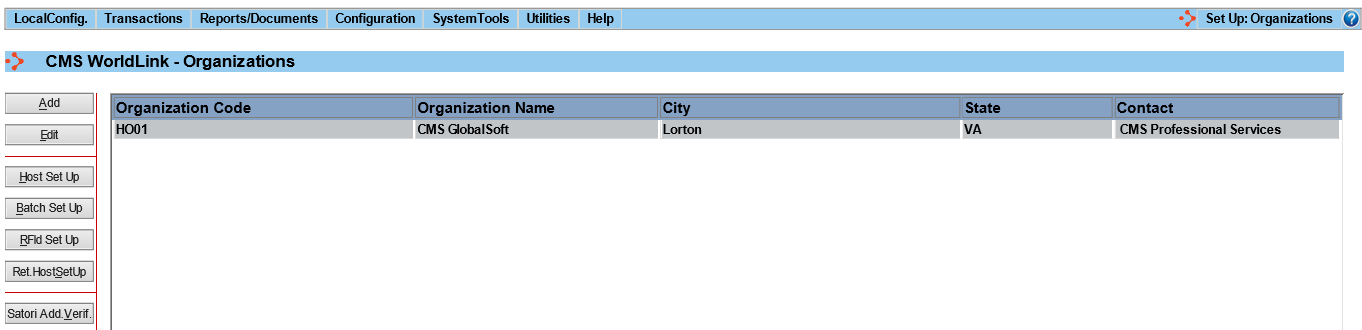
Organizations represent the companies sending out shipments. WorldLink will either be configured to allow only one possible Organization or it will be configured to allow more Organizations. Configure the Organization that you ship for by selecting this menu option. Depending on the license purchased for your business, you may have only one Organization (ship for yourself) or you may have many Organizations (e.g. a fulfillment house). The list of configured Organizations appear in a window like that shown below:
Options exist for either adding or editing an Organization, enabling inputs for handling Host shipping environments, RFID Labeling for customer compliance labels, or address correction verification. WorldLink has one Organization entered into the database as a default. Edit that entry to reflect your business setup.
Available functions are:
Add - Click on this button to bring up the Organization Dialog entry window.
Edit - Click on this button to make a modification to an existing Organization.
Host Set Up - Click on this button for Organization Host System configuration.
Batch Set Up - Click on this button for Batch System configuration.
RFID Set Up - Click on this button for RFID Labeling System configuration.
Ret. Host Set Up - Click on this button for Organization Return Host System configuration.
Satori Add Verif. - Click on this button for Address Verification configuration.
WorldLink does not provide a delete function for Organizations. This feature is to preserve the history of shipments made for the organization in question.
Note: Do not try to set up Batch right after creating a new Organization. A User Group has to be assigned to the newly created organization before setting up the Batch.