This topic discusses information about viewing consolidated shipments. The user can view consolidated shipments, a master package for multiple shipments, or the details for a package. You will be accessing shipments the same way as viewing shipments. However, it is important to identify consolidated shipment(s) and its informational display.
Only the consolidated shipments that have been processed successfully in the Process Shipments screen will be available for viewing. Shipments on Hold are not viewable through this process. Shipments that are in manifests that have been posted can be accessed through the Archived Manifests menu option.
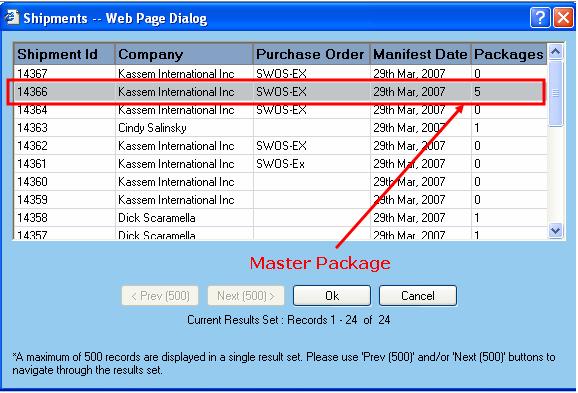
The user is presented with the Search Criteria dialog box when first entering this screen. The results of the query are then displayed in a window like the one presented below:
As shown in the dialog window, you see that the Master Package will have a number and the consolidated shipments within that Master Package will be listed as zero (0). Double-click on the Master Package shipment in question or highlight the shipment and click on the OK button. To cancel the listing without choosing a shipment, click on the Cancel button.
If the user cancels out of the above window, a window like the one below is shown except no data is populated in the fields. If a Master Package shipment is selected, a window similar to the one below is displayed:
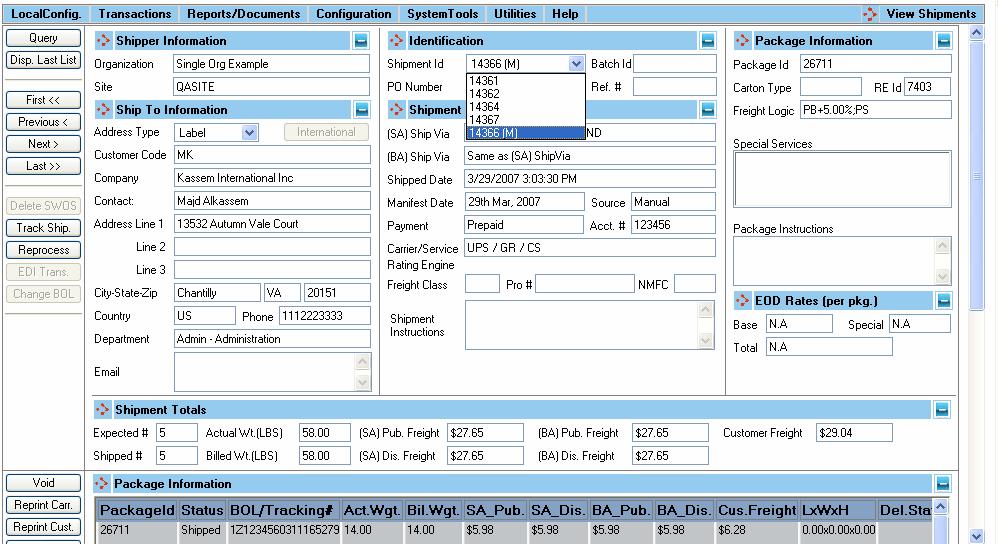
The data is displayed in read-only format. There are no changes you can make to the shipment. To make modifications, the shipment must be voided and re-entered through the Process Shipment screen.
The Shipment ID drop-down box displays the Master Package (M) and the consolidated shipments with that Master Package. You can select any Shipment ID to view the shipment details.
For details on this screen, see View Shipments.